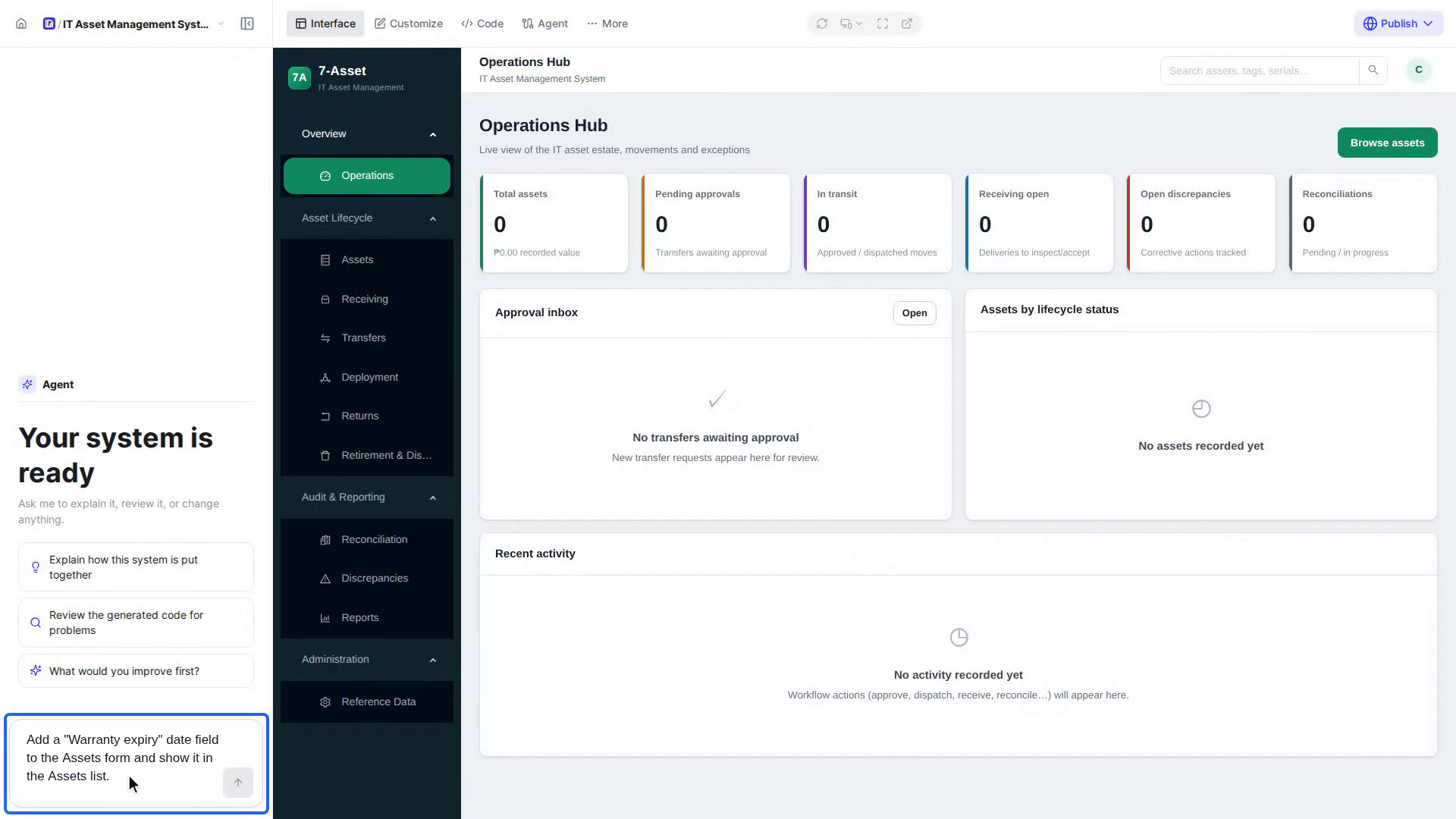
Ask the Agent in the chat panel
This page is about the quick Agent chat panel on the left of your app. For the full Agent Module, opened with Agent in the top bar, with sessions, your system's files, a terminal, model choice and usage, see Agent Module overview.
The Agent is an assistant that works on your app with you. Ask it in your own words to explain how the app works, review its code, or change something, such as a new field, a new screen or a different rule.
Before you start
- Your app must be generated. The Agent appears when the build is finished and shows Your system is ready.
- Open the app from All Apps on the Dalfin home screen.
Where to find it
The Agent is the panel on the left of your app's workspace, next to the Interface tab, which shows the app itself.
- If you can't see the panel, select the panel button next to the app's name. When its tooltip reads Show chat, the panel is hidden.
- Opening a page under More, such as Pipeline Progress or Deploy, replaces the panel. Select Interface to get it back.
What the Agent can do
| Ask it to… | For example |
|---|---|
| Explain your app | How the screens fit together, what data each screen keeps, or how a process works from start to finish |
| Review your app | Check the generated code for problems or missing validation |
| Change your app | Add a field, a screen, a report or a rule, or change a label, a list or a workflow |
Steps
Open your app
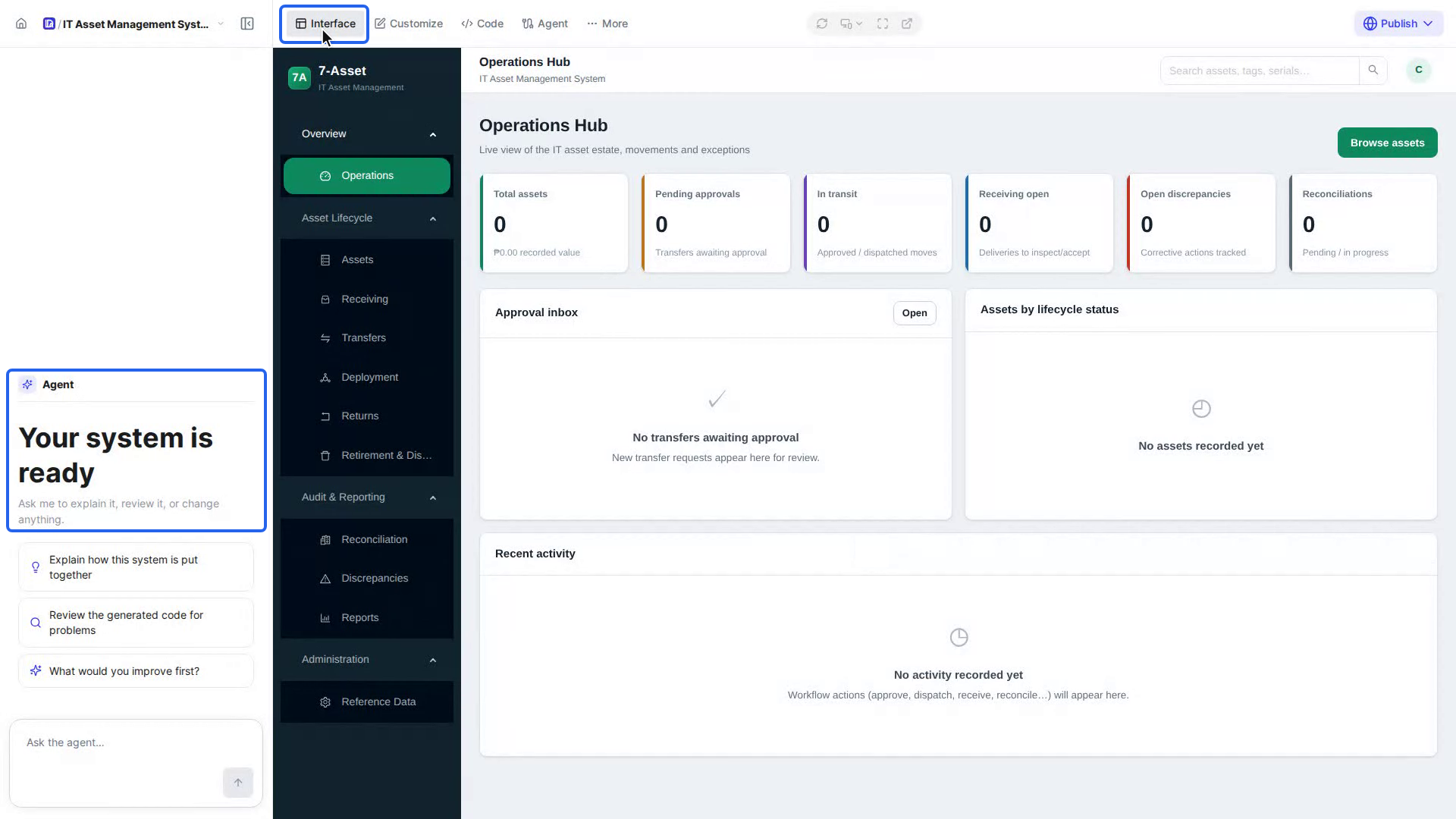
On the Dalfin home screen, select All Apps, then select your app. The workspace opens on the Interface tab with the Agent on the left.
Start from a suggestion
The panel opens with three suggestions. Select one to ask the Agent that question:
- Explain how this system is put together
- Review the generated code for problems
- What would you improve first?
Or write your own request
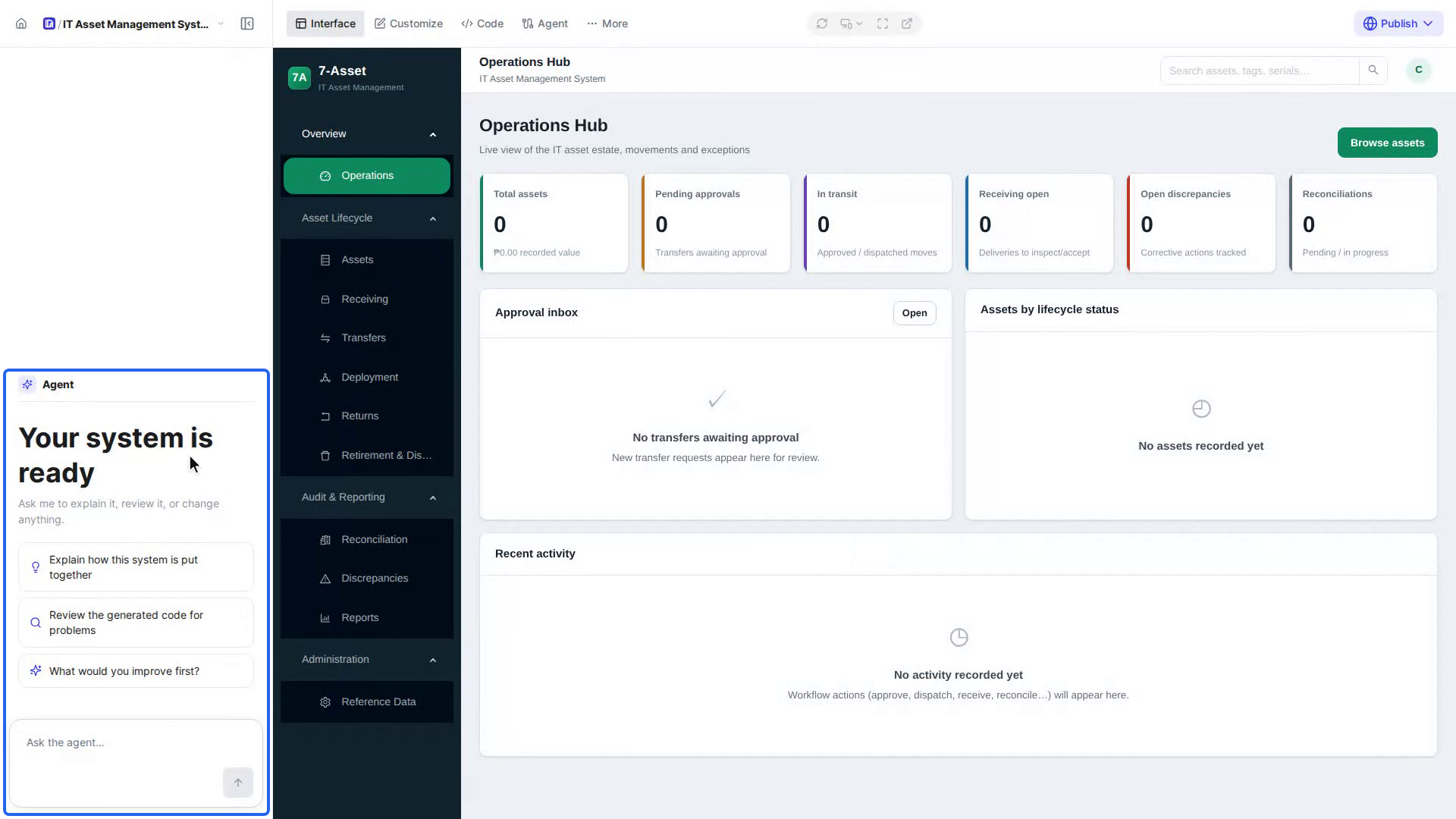
Click in the Ask the agent… box at the bottom of the panel and type what you want. Select the arrow button to send it.
To give the Agent more to work from, attach a file with the paperclip. It accepts PDF, Word, RTF, Excel, CSV, JSON, YAML, PowerPoint, PNG, JPG, WEBP, TXT and Markdown files.
Check the result
Read the Agent's answer in the panel. If it changed your app, check the change on the Interface tab. If it isn't what you wanted, tell the Agent what to fix in your next message.
Start a new conversation
Select New at the top of the panel to start over with a clean conversation, for example when you move on to a different part of your app.
Example requests
Copy one of these into the Ask the agent… box and change the names to match your app.
Understand your app
Explain how this system is put together. List each screen, what it is for,
and which data it reads and saves.
Walk me through what happens when an asset is transferred to another location,
from the request to the final approval.Review it
Review the generated code for problems. Start with anything that could lose
data or let a user see records they shouldn't.
Which forms are missing validation? List the field, the screen and the rule
you would add.Change it
Add a "Warranty expiry" date field to the Assets form and show it in the
Assets list.
On the Reports screen, add a report of assets whose warranty ends in the next
90 days, grouped by location.Rename the "Discrepancies" menu item to "Issues" everywhere in the app.Give it rules in a structured way
For a bigger change, describe it as a short list. The Agent reads plain text, so any format works. This is just easier to check:
change: Add an approval step to Transfers
when: a transfer's total value is over 10,000
who approves: users with the Finance Manager role
on approve: status becomes "Approved" and the transfer can be dispatched
on reject: status becomes "Rejected" and the requester sees the reason
Tips for good requests
- Name the screen and the field. "Add a Serial number field to the Assets form" works better than "track serial numbers".
- Ask for one change at a time. Check it on the Interface tab before you ask for the next one.
- Say what you see. If something looks wrong, describe the screen, what you did and what happened.
- Ask first, then change. Not sure how something works? Ask the Agent to explain it before you ask for a change.
For visual changes such as colors, spacing, text styles or moving an element on a page, the Customize editor is often quicker. See Customize your app.
Screenshots
The Agent next to your app
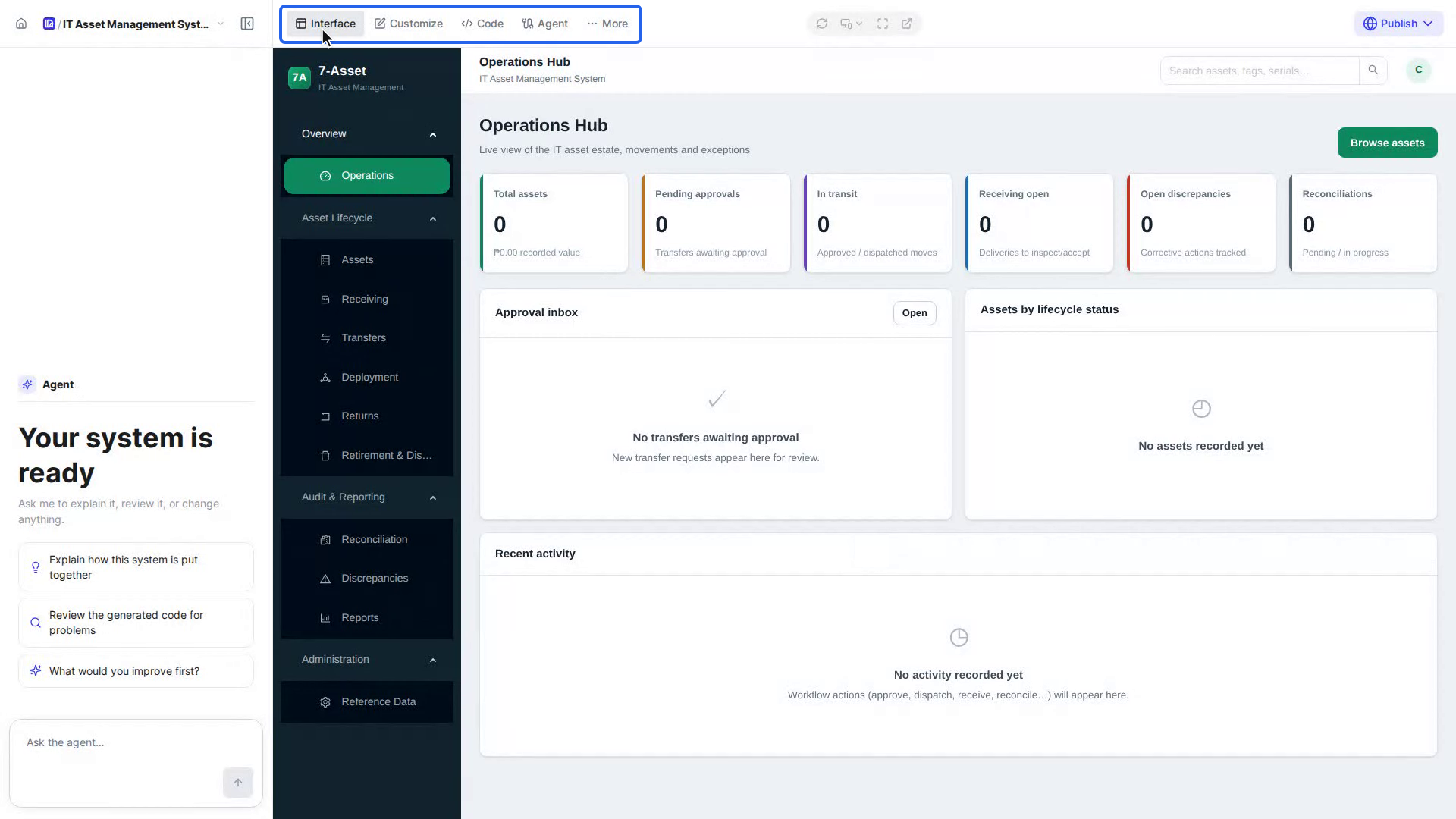
The top bar: Interface, Customize, Code, Agent and More
Step 1: Open your app
Step 2: Start from a suggestion
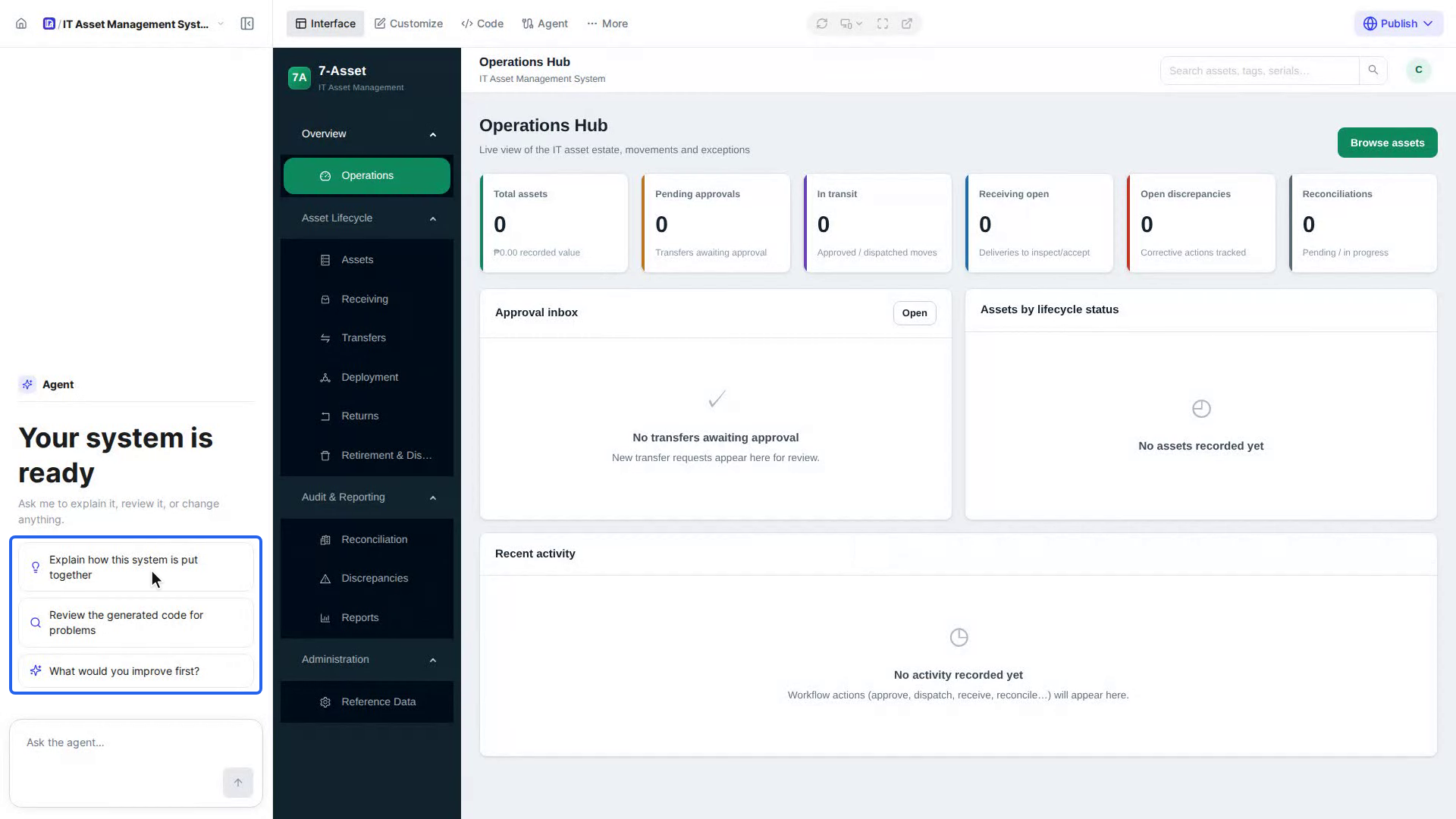
Step 3: Or write your own request