Change or add AI models
Choose which AI model the agent uses and how much effort it puts in, add your own Claude API key, or connect another model provider.
Before you start
- Open your system and select Agent in the top bar. See Open and set up the Agent Module.
- To use your own key, have the API key from your model provider ready, for example a Claude API key from Anthropic.
Steps
Choose a model
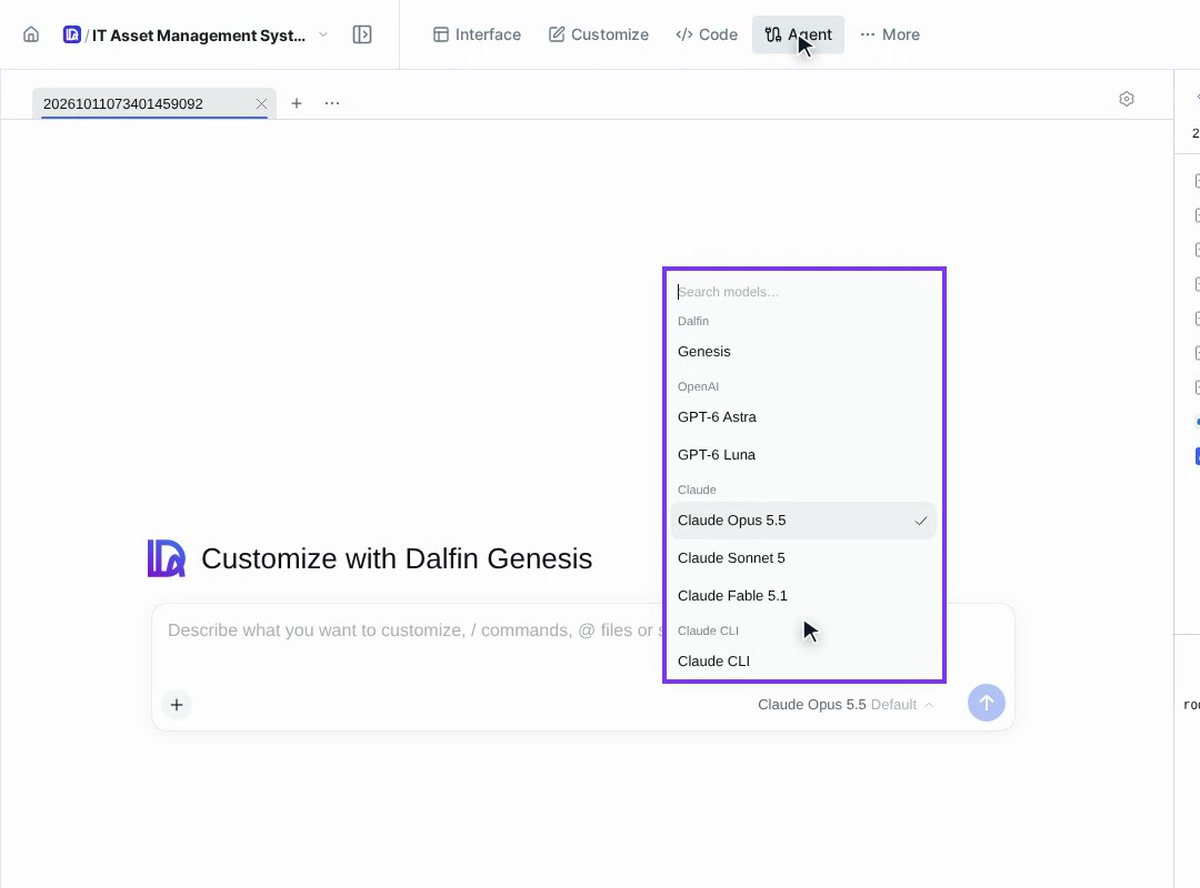
Select the model name below the message box, then select Model. The list shows the models your providers offer, grouped by provider: Dalfin (Dalfin's own model), OpenAI (for example GPT-6 Astra and GPT-6 Luna) and Claude (Claude Opus 5.5, Claude Sonnet 5 and Claude Fable 5.1). Select one, for example Claude Opus 5.5. A tick shows the model in use. Your choice applies to this conversation.
Set the effort
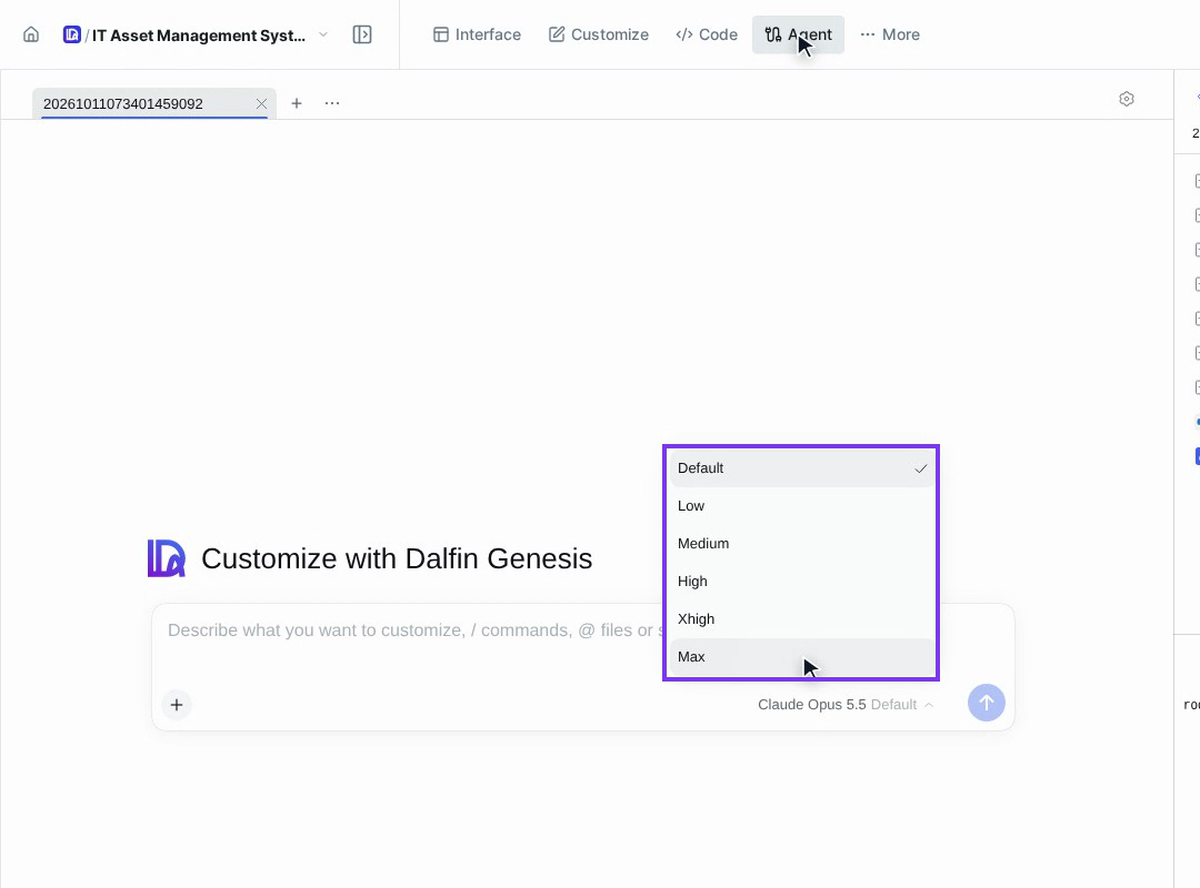
Select the model name again, then Effort, and pick a level: Default, Low, Medium, High, Xhigh or Max. More effort means the model thinks harder, but it is slower and uses more tokens.
Open the model settings
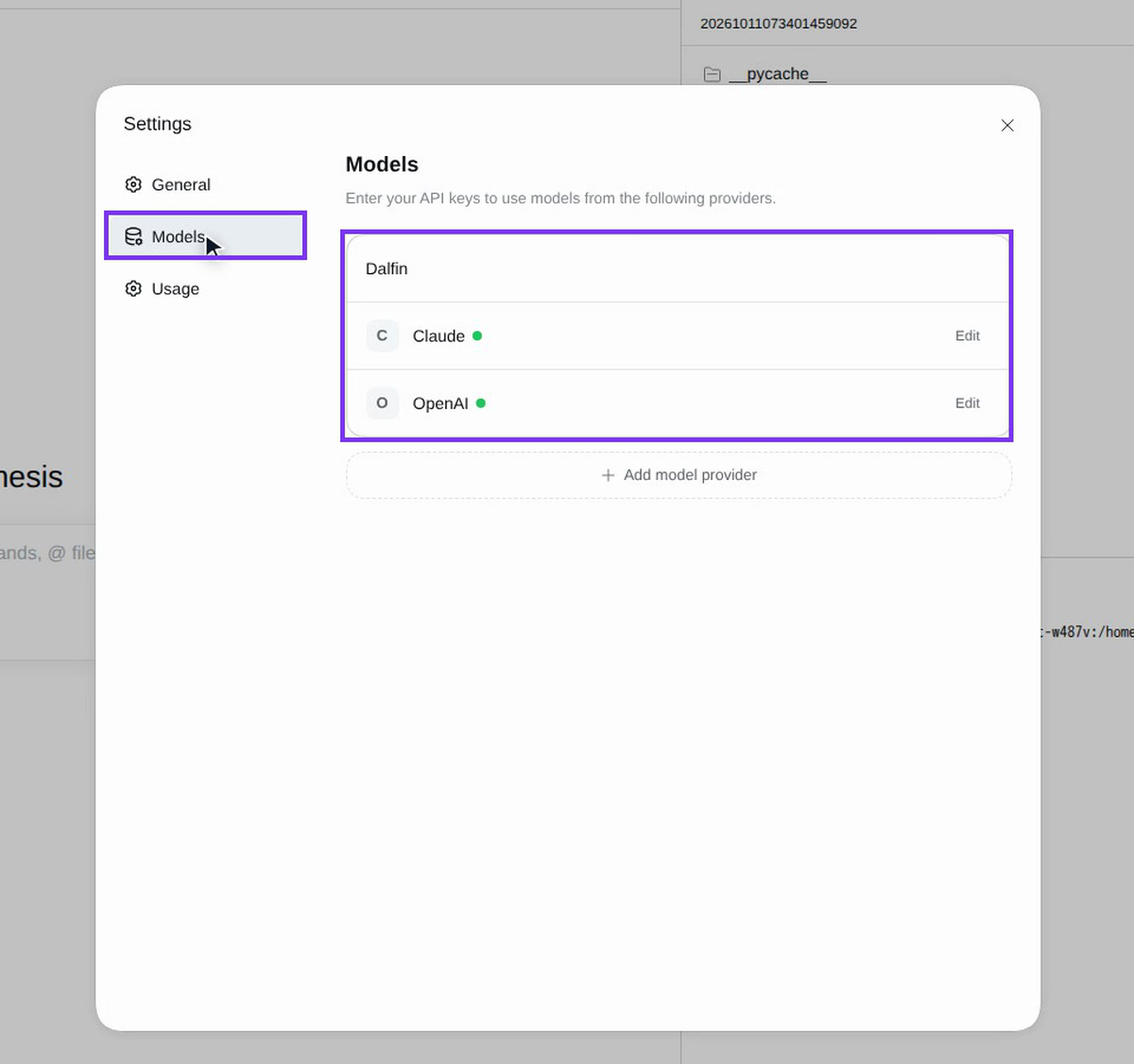
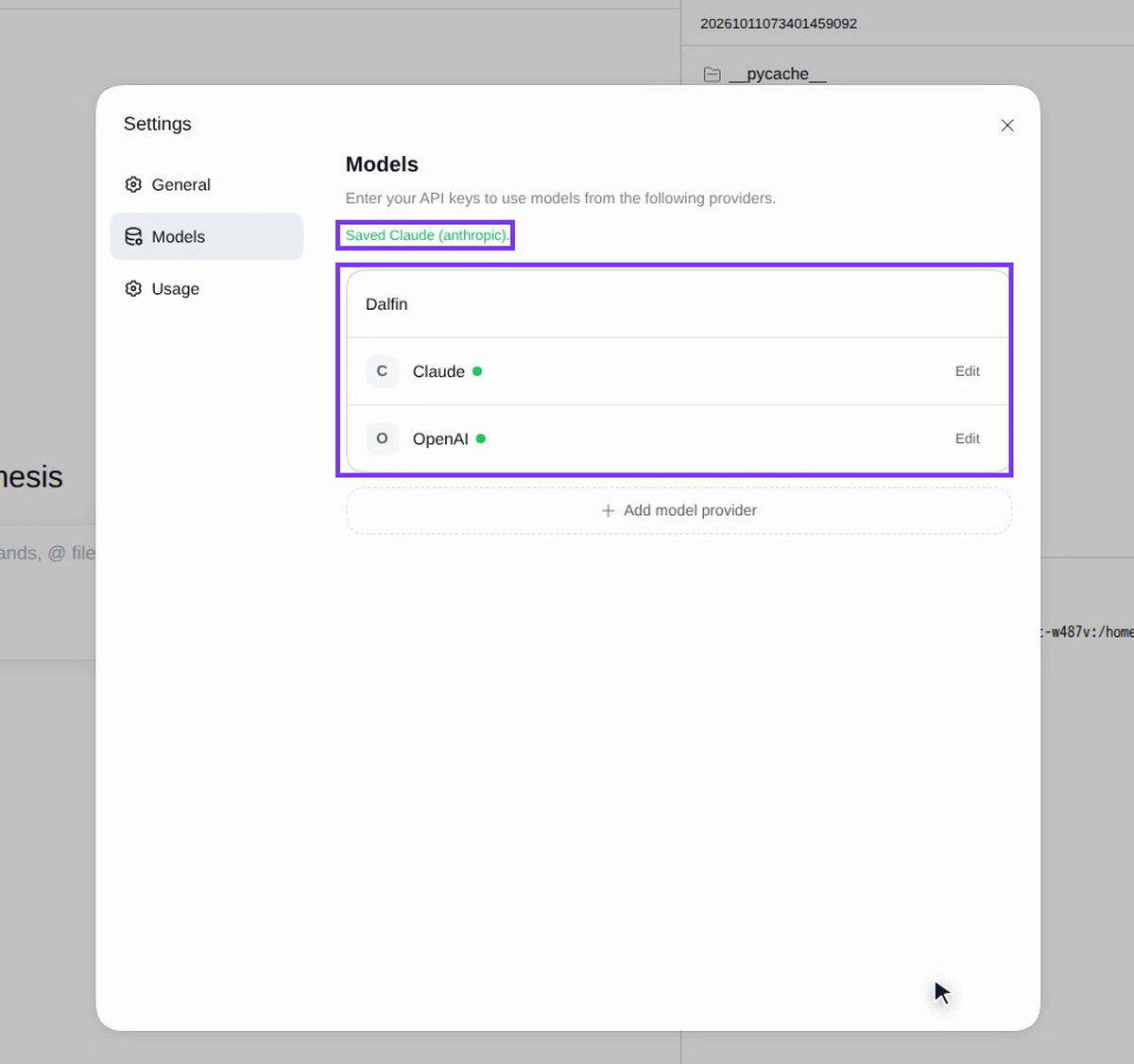
The models you can choose come from your model providers. To manage them, select the Settings gear at the top right of the conversation, then Models. Each provider is listed with Edit next to it. A green dot means the provider is connected.
Add your own API key
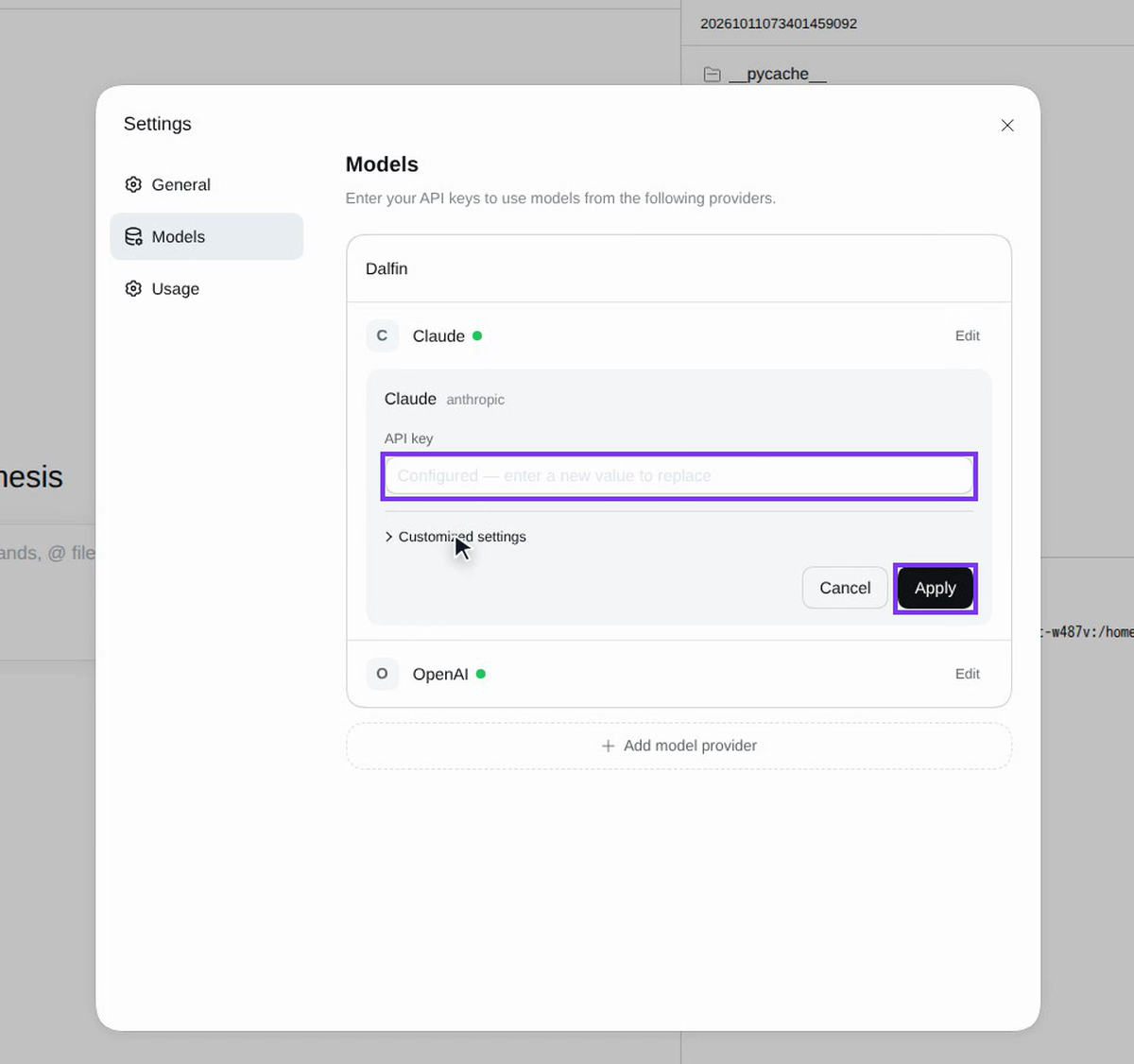
Select Edit next to the provider, for example Claude. Paste your key into API key. It stays hidden as you type. Under Customized settings you can also change the provider's Base URL and the models it offers. Then select Apply.
Check that it's saved
Dalfin shows Saved Claude (anthropic). above the list, and the green dot next to Claude shows it is connected.
Add another model provider
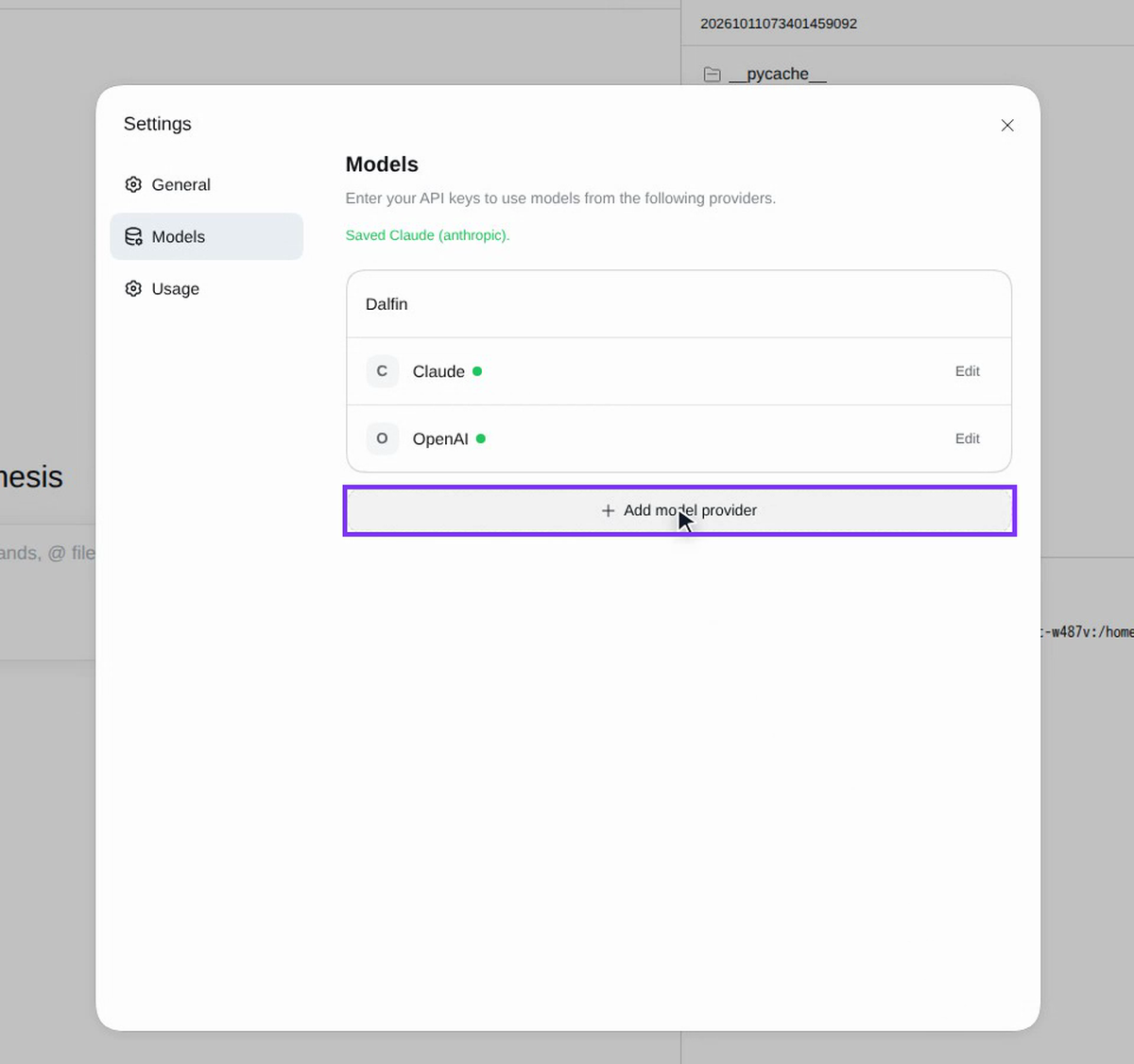
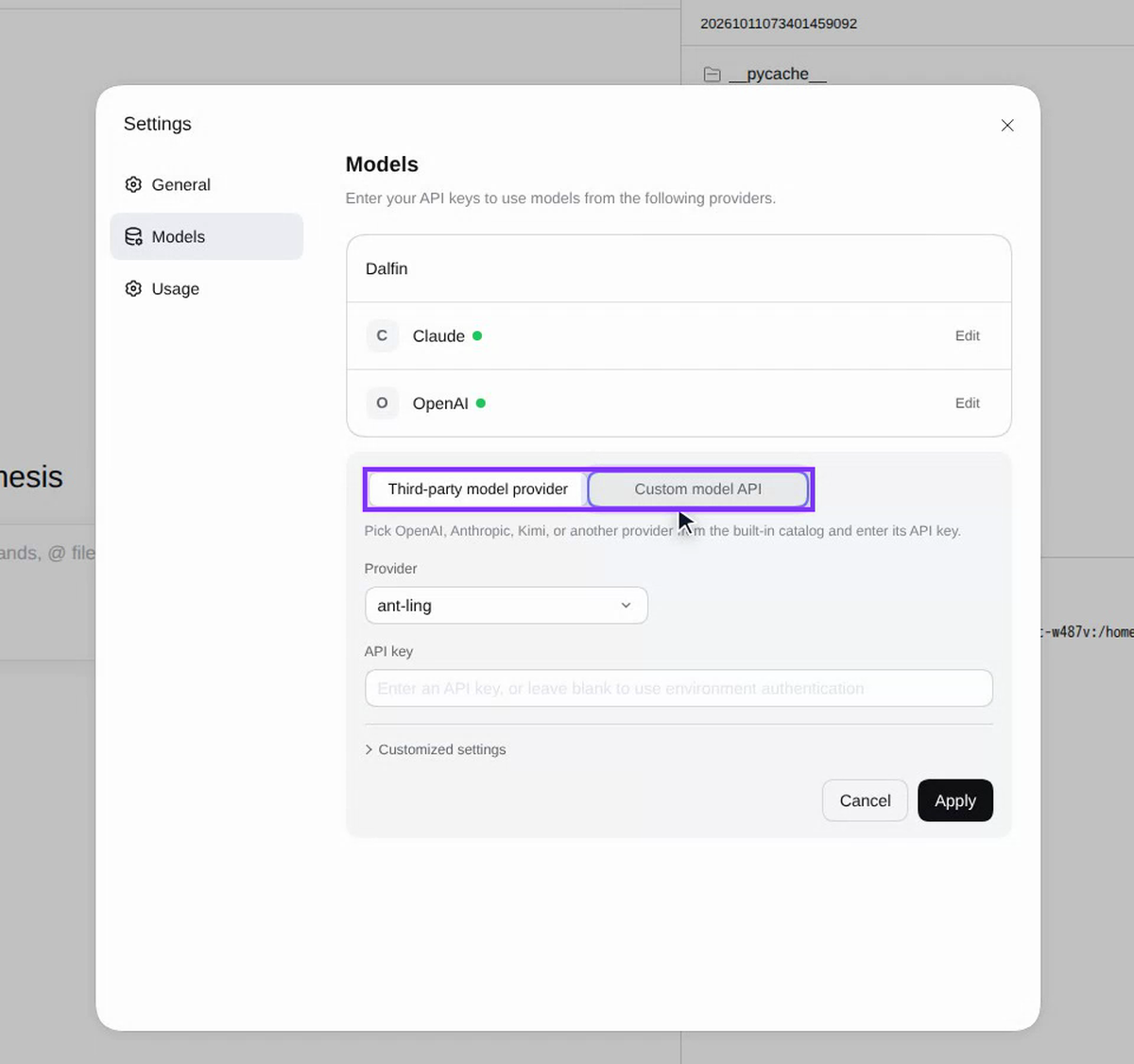
Select Add model provider, then choose how to connect it:
- Third-party model provider: pick a provider from the built-in catalog, such as OpenAI, Anthropic or Kimi.
- Custom model API: connect any other service by its address.
Choose the provider and enter its key
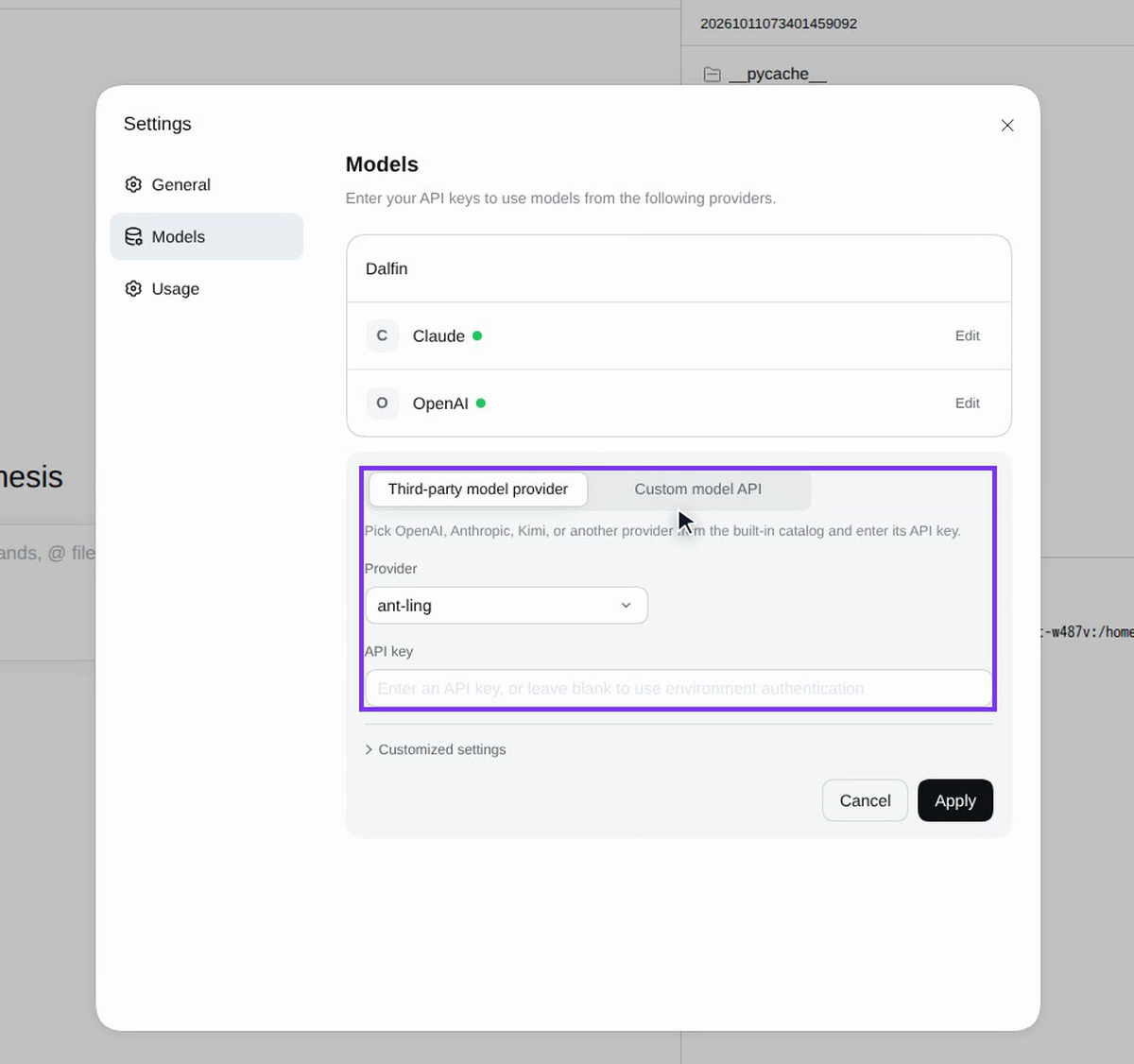
Choose the provider from Provider, enter its API key, and select Apply. Its models then appear in the model picker. To leave without adding anything, select Cancel.
Screenshots
Step 1: Choose a model
Step 2: Set the effort
Step 3: Open the model settings
Step 4: Add your own API key
Step 5: Check that it's saved
Step 6: Add another model provider
Step 7: Choose the provider and enter its key
Watch how
Treat an API key like a password. Paste it only into the API key box, and never into a message to the agent.